
WSET Online Exam: How to Get Ready? System Set Up?Updated 5 months ago
We highly recommend that you set up your devices ready for your online exam >10 days before your exam in case you run into any issues.
💻 PRIMARY DEVICE SET UP (Computer):
1. Check That You Have The Latest Version of Google Chrome:
- On your computer, open Chrome
- Click on the icon in the upper corner that looks like three dots
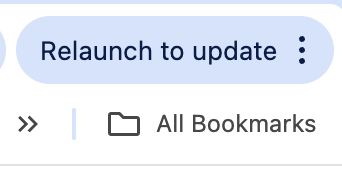
- Click on help
- Click on About Google Chrome which will then show your latest version and if up to date or not
To update Google Chrome:
- Click on the icon in the upper corner that looks like three dots
- Click "Update Google Chrome". If you don’t see this button, you’re on the latest version
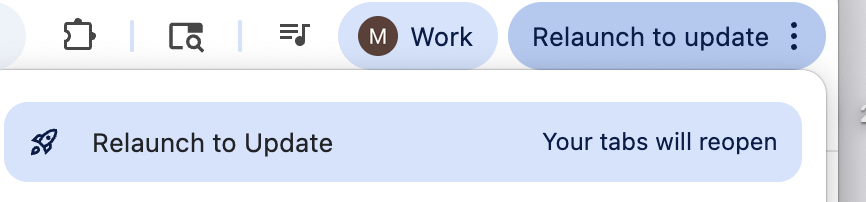
- Click Relaunch
If you need to download Google Chrome, click here.
2. Allow Pop-Ups for ProctorExam:
- Type chrome://settings/content into your Google Chrome browser url and press Enter
- Click on Privacy and Security
- Click on Site Settings
- Scroll down and click on Pop-ups and redirects
- In 'Allow', click 'Add' and enter url: https://surpass.proctorexam.com
3. Install ProctorExam extension/plugin within Chrome to allow screen sharing:
- Type https://chrome.google.com/webstore/category/extensionsinto your Google Chrome browser and press Enter.
- Search for ProctorExam
- Click on ‘add to chrome’
- Click on ‘add extension’
(4) If you are using a macOS primary device, please ensure you have screenshare enabled by following these steps (Your exam will not work without screenshare enabled):
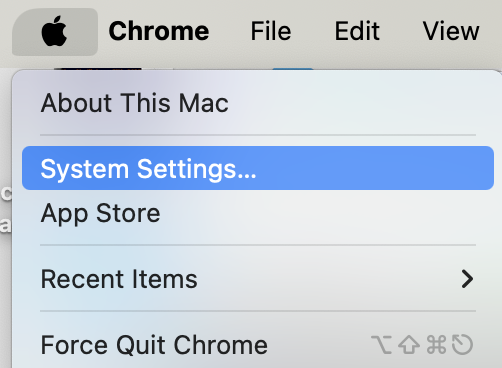
- On your Mac, choose Apple menu > System Settings, click Privacy & Security in the sidebar (You may need to scroll down).
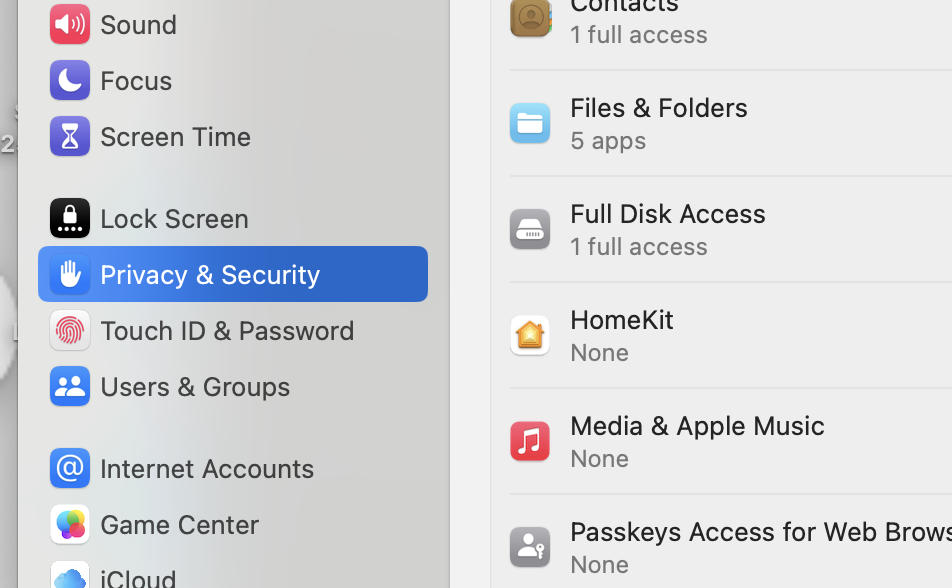
- Click on System Screen & Audio Recording.
- Turn screen recording on for the Google Chrome app in the list.
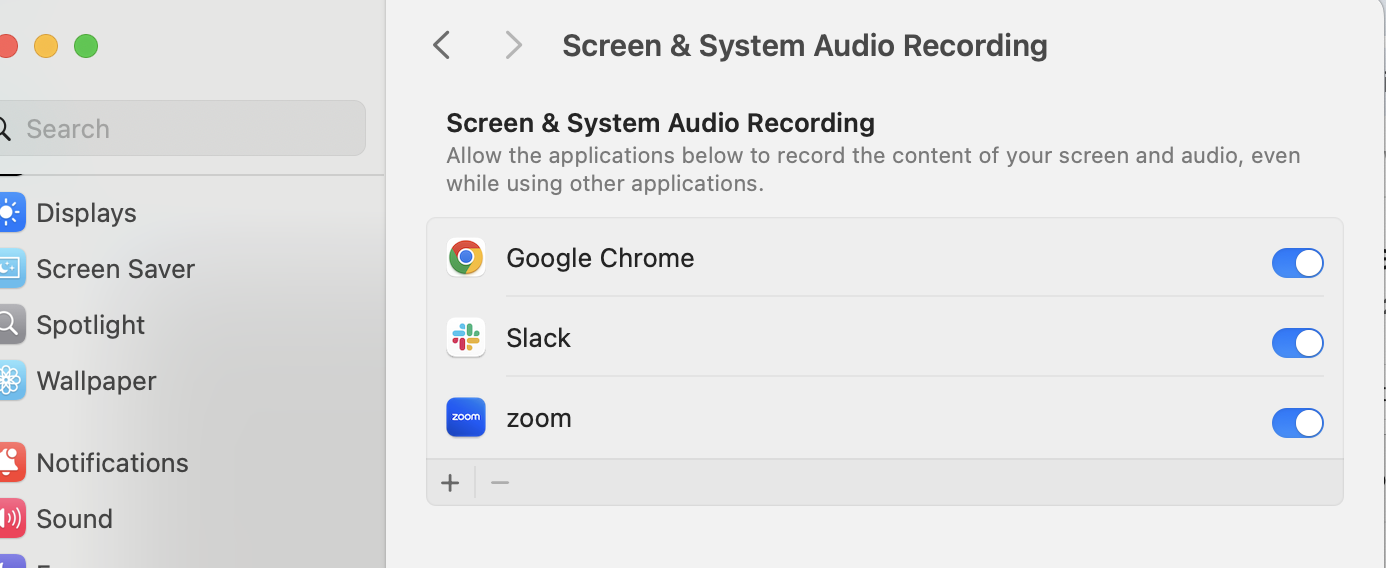
- For additional guidance see this support page, and toggle to your macOS: https://support.apple.com/guide/mac-help/control-access-to-screen-recording-on-mac-mchld6aa7d23/13.0/mac/13.0
(5) ChromeOS Devices must have all applications and browsers shut down completely besides the browser needed to take the exam (no background applications) in order for the System Check and Exam to function.
📱SECONDARY DEVICE SETUP (mobile phone)
1. Download the ProctorExam Mobile application
- Find the ProctorExam application in the Apple App Store or Google Play store depending on what type of device you are using.
- Allow the application to access your camera
If you have any issues with setting up your devices, feel free to reach out to our Student Success team [email protected] and we'll be happy to assist you.
7 days before your online exam, you will receive an email from WSET [email protected] with subject: "Please check that your computer is ready for your remotely invigilated exam". Please, complete the system check without a delay. WSET is based in London and they may not be able to assist with issues reported to them too close to the exam (<3 days). If you haven't received the system check email, please take the following steps:
TEST YOUR EQUIPMENT
1. Open your email from [email protected]
- Email Subject Line: "Please check that your computer is ready for your remotely invigilated exam"
- click on TEST YOUR EQUIPMENT NOW.
2. Follow the on screen prompts to complete your System Check Test
- Note: During System Check Step 6, with your secondary device's ProctorExam application open; you will scan the QR code showing on your primary device.
3. Ignore system updates after completing System Check
- To prevent any issues, we advise candidates not to take any system updates / turn off automatic updates once the System Check Test is complete. Updating the system after completing the System Check may revert all settings. Please wait until you have submitted your exam.
SYSTEM CHECK AND EXAM SET UP VIDEO TUTORIAL
- System Check and Exam Setup Video Tutorial - if you need additional help understanding the set up instructions above, this user guide shows you how to test your equipment and set-up for your exam. Please note it is not WSET Specific.
- Review List of Violations and Common Issues which Require a Re-Sit and Requirements in the rest of this webpage for WSET expectations.
- Step 10 of the Exam Setup Guide requires candidates show additional materials allowed for the exam. Additional materials ARE NOT PERMITTED in WSET RI exams.
You can use the following resources to check your equipment is working correctly:
Microphone – https://www.onlinemictest.com/
Webcam- https://www.onlinemictest.com/webcam-test/ or https://webcammictest.com/
If you don't receive a system check email from WSET Global about 7 days prior to your exam, please complete the following steps:
WSET ONLINE EXAM RESTRICTIONS
Work-related devices / Wi-Fi
- Attempting to use a device and/or a VPN that is intended for work purposes may have restricted access and admin rights installed. Personal devices should be used whenever possible. If you are using a work device, you may find that you are not able to use the platform due to settings and security applied by your IT. This may cause issues when trying to access the ProctorExam platform and therefore it is recommended to use a personal laptop. Note: We cannot guarantee a successful testing experience if a work device is used.
- Public / Work Wi-Fi does not guarantee a successful testing experience and technical issues experienced as a result are not covered by WSET Special Consideration Policy
Territory Restrictions
- It is not possible to take an RI exam within Mainland China or the UAE due to technological restrictions. WSET will not be liable for any costs associated if you choose to take this exam or any RI retakes. Contact your WSET APP if you have any questions.
Exam Room Setup
- Choose a private exam room where the secondary device can be placed approximately 3 meters/10 feet away from you or at least provide a side view of yourself, your desk, your screen and your exam environment.
- Set up where the Wi-Fi signal is strongest. A wired connection is a more stable connection.
Legal ID
- You need a legal / government-issued ID for your RI exam so we can verify your identity during the exam. Verify with your APP that you are enrolled to the exam with your government issued full name as shown on your legal identification. You will submit this ID during your RI exam. Using any nicknames will delay your results.
- You may receive post-exam communications from your APP requesting a copy of your ID. If your APP requests a copy, please provide it to them as soon as possible. If WSET does not receive validation of an ID within 6 weeks, we will not be able to process your exam.
Common Causes for Exam Invalidation
- Exam takers must adhere to the requirements in the attached list to avoid exam invalidation, in the same way that in-person exam takers must adhere to exam room guidelines:
- LINK: List of Violations and Common Issues which Require a Re-Sit
Additional Resources:
WSET Remote Invigilation Essential Guidance
WSET Online Exam: Day of Exam Best Practices